Configuration (Getting an API Key)
Gamedev AI does not have a proprietary backend to steal your data. It makes direct calls (switchable) to the top LLM servers you prefer to use. All indexed knowledge is saved locally on your machine for safety!
For the plugin to speak and respond to your code, we need to provide an API Key.
Using Google Tools (Gemini)
The most popular and incredibly smart way to use the plugin today is by using Google AI Studio with Gemini 3.1 Pro or Gemini 3.1 Flash. Gemini 4.0 is currently in beta.
- Access Google AI Studio.
- Log in with your Google account (no credit card required on the Free Tier).
- Click on "Get API key" or "Create API key".
- Copy the generated long key
(example: AIzaSyD......).
Connecting the Key in the Editor
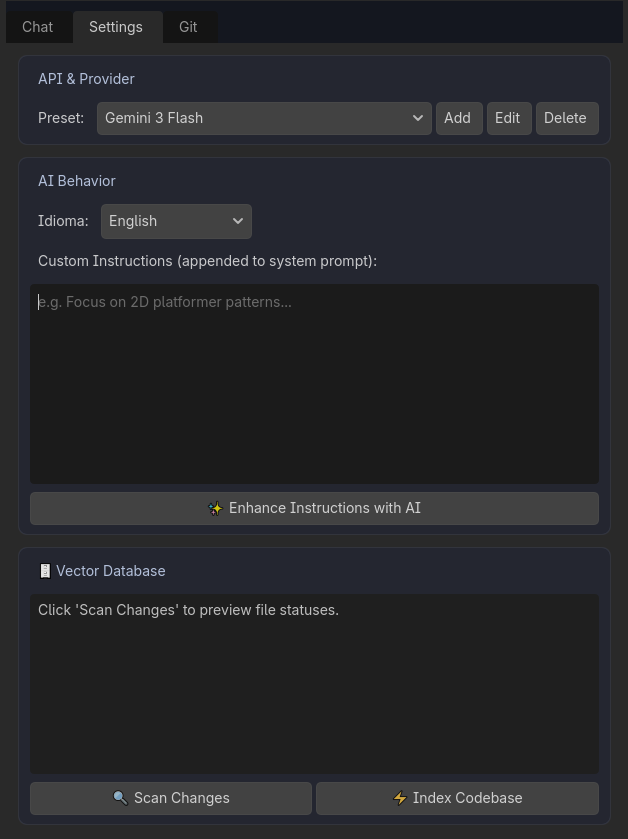
- Click on the hidden top tab called "Settings" inside the Gamedev AI panel in Godot.
- Make sure the selected Provider in the dropdown menu is "Gemini".
- In the API Key text field, paste your entire key, making sure there are no extra spaces.
- Type your preferred model in the Model Name field (the default is usually
gemini-3.1-proorgemini-3.1-flash).
💡 Golden Tip!
Using OpenRouter or OpenAI
If you prefer to access models like Claude Opus 4.7, GPT-5.5, or other cutting-edge open models, Gamedev AI supports natively compatible APIs.
- Register and get your API Key at:
- Go back to the hidden Settings tab inside Godot.
- Change the Provider in the dropdown from
GeminitoOpenAI / OpenRouter. - Paste your API Key.
- In the extra field called Base URL, enter exactly the corresponding address:
- OpenRouter:
https://openrouter.ai/api/v1 - OpenAI:
https://api.openai.com/v1
- OpenRouter:
- Change the Model Name field to the desired model identifier (e.g.,
anthropic/claude-opus-4.7orgpt-5.5).
Using NVIDIA NIM (Free DeepSeek and Others)
The NVIDIA NIM platform provides fast and often free access to many high-end models, such as the DeepSeek and Llama series, via an OpenAI-compatible API.
- Go to the NVIDIA API Catalog and create an account to get your API Key.
- In the plugin's Settings tab, select the
OpenAI / OpenRouterprovider. - Paste your NVIDIA generated API Key.
- In the Base URL field, you must enter the exact NVIDIA NIM URL:
https://integrate.api.nvidia.com/v1
- In the Model Name field, enter the name of the desired model.
⚠️ Warning: The Model Name in NVIDIA In NVIDIA NIM, you are required to include the "organization prefix" before the model name. Example: For DeepSeek, you should not just use
deepseek-v4-pro, but insteaddeepseek-ai/deepseek-v4-pro(ordeepseek-ai/deepseek-r1). For Llama, it would bemeta/llama-3.1-70b-instruct. If the organization prefix is not included, the API will return a 404 - Not Found error.
Using Local Models (Ollama / LM Studio)
Do you prefer to run AI models directly on your machine, without relying on external APIs and completely free of charge?
- Install Ollama and download a model in your terminal:
ollama pull llama3.1 - Ensure Ollama is running (via
ollama serveor keep the app open). - In the Settings tab, change the Provider to
Local (Ollama / LM Studio). - The Base URL field will be automatically populated with
http://localhost:11434/v1. - Enter the downloaded model name in the Model Name field (e.g.,
llama3.1,gemma4,deepseek-v4-pro). - The API Key field will be automatically disabled (local models do not need one).
⚠️ Note: The speed and quality of the responses depend purely on your machine's hardware (GPU) and the chosen model.
We are ready to chat!