Full User Interface Guide (All Buttons)
This page describes every button, toggle, and control present in the Gamedev AI interface inside the Godot editor.
🗂️ Main Tabs
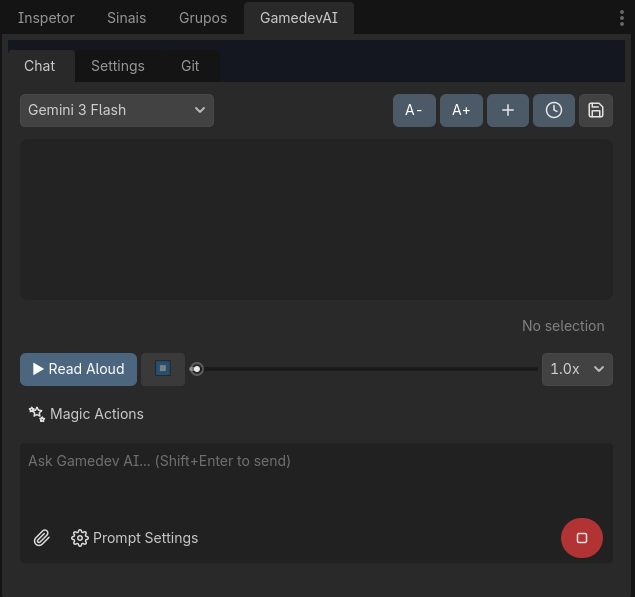
The plugin has 3 tabs at the top of the panel:
- Chat — The main conversational panel with the AI.
- Settings — API Key management, presets, prompts, and indexing.
- Git — Integrated version control with GitHub.
💬 Chat Tab
Top Bar
| Button | Function |
|---|---|
| Preset Selector | Dropdown to quickly switch between different provider/model settings (e.g., "Gemini 3.1", "GPT-4o"). |
| A- / A+ | Decreases or increases the chat font size. |
| + New Chat | Clears the current conversation and starts a completely new session. |
| ⊙ History | Dropdown menu listing all past conversations. Click one to restore the full context of that session. |
| 💾 Summarize to Memory | Sends an automatic prompt asking the AI to summarize the current conversation's architectural decisions and save them to the project's persistent memory. |
Chat Area (OutputDisplay)
- Displays BBCode formatted messages supporting bold, italic,
inline codeand syntax highlighted code blocks. - Clickable links to project files (click to open in editor).
- A floating Copy button appears when selecting text to quickly copy it.
TTS Player (Text-to-Speech)

| Control | Function |
|---|---|
| ▶ Read Aloud | Converts the AI's last response to audio and plays it. Useful for listening to explanations while programming. |
| ⏹ Stop | Stops the audio playback. |
| Seek Slider | Progress bar to rewind or fast-forward the audio. |
| Speed (1.0x - 2.0x) | Controls the TTS playback speed. |
Quick Action Buttons
| Button | What it does |
|---|---|
| ✧ Refactor | Sends the selected code in the editor with the "Refactor this code" prompt. The AI analyzes and proposes structural improvements. |
| ◆ Fix | Sends the selected code with "Fix errors in this code". The AI identifies bugs and generates fixes. |
| 💡 Explain | Sends the selected code with "Explain what this code does". The AI explains each part in English. |
| ↺ Undo | Undoes the last action the AI executed in the project (using Godot's Undo/Redo system). |
| 🖥 Fix Console | Reads the latest red errors from the Godot Output console and sends them directly to the AI to analyze and propose fixes. |
Input Area
| Element | Function |
|---|---|
| Text Field | Type your message. Use Shift + Enter to send. |
| 📎 Attach | Opens a file picker to attach images, scripts, or any file to the prompt. |
| ➤ Send | Sends the message to the AI for processing. |
| Drag & Drop | Drag Scene Tree nodes or FileSystem files directly into the text field or chat area. The AI will receive the full metadata of the dragged node/file. |
Prompt Settings (Dropdown)
These options are grouped under the ⚙️ icon next to the send button.
| Setting | Function |
|---|---|
| Include Context | When activated, the plugin automatically appends the full contents of the currently open script in the editor to the sent message. |
| Send Screenshot | When activated, it automatically takes a screenshot of the Godot window and sends it with the message for the AI's visual analysis. |
| Plan First | When activated, the AI will not write code. It will only reply with a detailed Markdown plan listing proposed changes. After reviewing, click the "Execute Plan" button that appears for it to code. |
| Watch Mode | When activated, the AI automatically monitors Godot's Output console. If it detects critical (red) errors when running the game, it automatically proposes fixes. |
⚙️ Settings Tab
Preset Management
| Element | Function |
|---|---|
| Preset Selector | Dropdown to choose among saved presets. |
| Add | Creates a new empty preset to configure another provider/model. |
| Edit | Opens the edit panel showing Name, Provider, API Key, Base URL, and Model fields. |
| Delete | Permanently removes the selected preset. |
| Done Editing | Closes the edit panel, saving the changes. |
Preset Edit Fields
| Field | Description |
|---|---|
| Preset Name | Friendly name to identify the preset (e.g., "Gemini 3.1"). |
| Provider | Dropdown choice between "Gemini" and "OpenAI / OpenRouter". |
| API Key | Your API Key from the selected provider. |
| Base URL | Base API URL (only for OpenAI/OpenRouter). |
| Model Name | Exact model name (e.g., gemini-2.5-flash, gpt-4o). |
Language
| Element | Function |
|---|---|
| Language Selector | Dropdown to choose the interface and AI response language (Português BR, English, etc.). |
Custom System Prompt
A large text box where you can insert fixed rules the AI will always follow. Example: "Use static typing on all functions. Comment in English."
| Button | Function |
|---|---|
| ✨ Enhance Instructions with AI | Sends your current instructions for the AI to enhance automatically, adding technical details and best practices. A preview is shown before accepting. |
Vector Database
| Element | Function |
|---|---|
| File List | Visual list of all project .gd files with indexing status (new, modified, unchanged). |
| 🔍 Scan Changes | Sweeps the project looking for new, modified, or deleted files since the last indexing. |
| ⚡ Index Codebase | Starts the vector indexing process of all modified scripts using the Embeddings API. |
🐙 Git Tab
Initial Setup
| Element | Function |
|---|---|
| Initialize Repository | Initializes a Git repository in the project folder (if one doesn't exist). |
| Remote URL | Field to paste the GitHub repository URL (e.g., https://github.com/user/repo.git). |
| Set Remote | Sets the remote repository URL. |
Main Operations
| Button | Function |
|---|---|
| 🔃 Refresh Status | Refreshes Git status showing modified, untracked files, and current branch. |
| ⬇️ Pull | Downloads the latest changes from the remote repository. |
| ✨ Auto-Generate Commit Message | The AI analyzes all modified files (diff) and automatically generates a professional, descriptive commit message. |
| Commit & Sync (Push) | Commits all changes with the typed/generated message and pushes them to GitHub. |
Branches
| Element | Function |
|---|---|
| Branch Label | Shows the current branch name. |
| Branch Name Input | Field to type a new branch name or existing branch. |
| Checkout/Create Branch | Creates a new branch or switches to an existing one. |
Emergency Actions
| Button | Function |
|---|---|
| ⚠️ Undo Uncommitted Changes | Discards ALL uncommitted local changes, reverting to the last commit's state. Requires confirmation. |
| ⚠️ Force Pull Overwrite | Completely replaces the local project with the state of the remote repository. Requires confirmation. |
| ⚠️ Force Push | Force pushes the local state to the remote repository, overwriting history. Requires confirmation. |
📋 Diff Panel (Code Review)
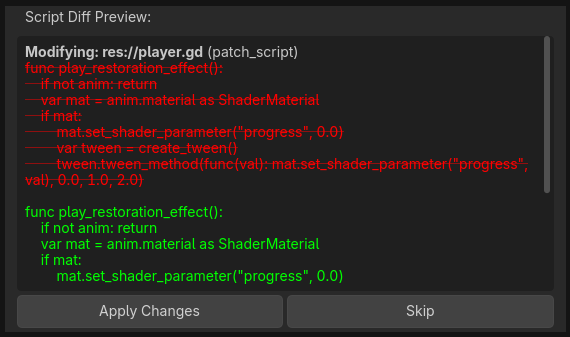
When the AI generates or modifies code, a Diff panel appears in the chat:
| Element | Function |
|---|---|
| Diff View | Side-by-side view showing removed (red) and added (green) lines. |
| Apply Changes | Accepts the changes and applies them to the real file. The action is logged in Godot's Undo/Redo. |
| Skip | Rejects the changes. No files are altered. |