
Chat, Attachments, and Context (The Plugin's Lungs)
The Chat is more than just a ChatGPT chat embedded in the right window of your editor. It is the true "respiratory system" between your Game Files and the AI's Mind.
The Importance of "Context" (Reading your current code)
The Artificial Intelligence cannot see your monitor and does not know what you are currently programming — Unless you tell it to look!
Below the "Send" bar, you will see an important Checkbox called Context.
- Checked (Default): Gamedev AI will secretly copy every line and character of the file (
.gd) where the cursor is blinking at that moment in your Script window. It will send it along with the question you ask! - Unchecked: Saves your limited context "Tokens" on paid models (OpenAI), making a blind and quick question just like generic ChatGPT. Use when you have an isolated problem that doesn't require engine context.
📸 Screenshot (Automatic Snapshot)
Next to the Context toggle, there is a Screenshot toggle. This feature allows the AI to literally "see" what's on your Godot screen.
How It Works
- Activate the "Screenshot" toggle on the bottom bar of the Chat.
- The next message you send will be accompanied by an automatic screenshot of the entire Godot editor window.
- The AI will receive the complete image and can visually analyze: the open 2D/3D scene, the Scene Tree, the Inspector, the Output, and any other visible panel.
When to Use
- Broken UI: Your game interface is misaligned but you don't know which Label or Container is the culprit? Activate the capture, send "What's wrong with this layout?" and the AI will visually analyze the nodes.
- Complex Scene Tree: Want the AI to understand how the node hierarchy is organized without manually describing each one.
Tip
The AI also has the capture_editor_screenshot tool which it can call itself at any time during a conversation if it needs to "look" at the editor on its own.
Plan First Button
It is very common to make mistakes when asking the AI to create all the logic for a massive RPG right away. The plugin allows you to brake robotic impulsiveness by activating Plan First.
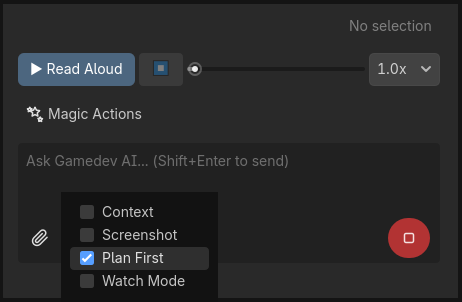
- Checked: The plugin will send a strict directive. The AI will not create code. It will respond exclusively with a numbered Markdown list enumerating the project (Classes, Names, and Base Functions) to be changed.
- After you review and approve, click the "Execute Plan" button that will automatically appear. The AI will then start implementing everything it planned.
Attachments and Draggable Nodes
Need to analyze how a Sprite2D is made, or why the Player.tscn Scene doesn't collide with the Ground RigidBody3D?
The Gamedev AI plugin supports Drag & Drop dragging. You don't have to waste time opening every Inspector tab that generated curiosity or visual failure...
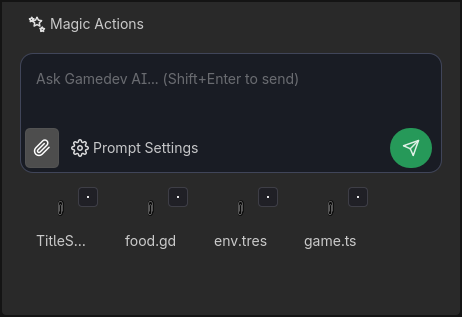
- Scene Tree: Click on a Node in the Scene and drag it towards the text bar. The AI will use the shortcut to analyze all Node Metadata (hidden positions, instantiations, collider tags...) and understand why the friction vectors don't seem to work.
- 📎 Attach Button: Use it to insert Images (
.pngof buggy UI), raw save files (.json), and global captures of large scripts (although vector indexing is the more professional method).
🎙️ Read Aloud (TTS - Text-to-Speech)
Gamedev AI has a built-in voice narration player that converts AI responses to audio. This allows you to listen to explanations while you keep programming without stopping to read walls of text.

How to Use
- After the AI answers any question in the chat, click the "▶ Read Aloud" button (located right below the chat area).
- The plugin will send a request to convert the text of the last response into audio.
- A compact audio player will appear with full controls:
| Control | Function |
|---|---|
| ▶ Read Aloud | Starts playback of the narration. |
| ⏹ (Stop) | Stops playback immediately. |
| Progress Bar | Allows you to fast-forward or rewind the narration by dragging the slider. |
| Speed (1.0x to 2.0x) | Controls the speed of the narration. Use 1.5x or 2.0x to listen faster. |
When It's Useful
- Long answers: Did the AI explain 3 paragraphs about how
NavigationAgent3Dworks? Listen while tweaking nodes in the Scene Tree. - Accessibility: For developers who prefer to learn by listening or who have difficulty with prolonged screen reading.
- Passive review: Let the AI narrate the refactoring plan while you grab a coffee!
Note
The TTS feature uses the configured provider API to synthesize the audio. The stream is cached, so pausing and resuming incurs no additional token cost.
⚡ Quick Action Buttons
In the bar right below the chat area (and above the text field), there are 5 quick action buttons that act as smart shortcuts. They automatically send a pre-configured prompt along with the code you selected in the Godot Script Editor.
How They Work
- Open any script (
.gd) in the Godot code editor. - Select a piece of code with your mouse or keyboard (e.g., an entire function, an
ifblock, or a few lines). - Click on one of the buttons below:
The 5 Buttons
| Button | Prompt Sent | What the AI Does |
|---|---|---|
| ✧ Refactor | "Refactor this code" | Analyzes the selected snippet and proposes a cleaner, more efficient version with better GDScript practices. |
| ◆ Fix | "Fix errors in this code" | Identifies bugs, syntax errors, incorrect types, or flawed logic in the snippet and generates a fix in Diff. |
| 💡 Explain | "Explain what this code does" | Explains line by line what the snippet does in natural language, perfect for learning or documenting. |
| ↺ Undo | (Direct action) | Undoes the last modification the AI made in the project using Godot's native Undo/Redo system. No prompt. |
| 🖥 Fix Console | (Reads Output) | Reads the latest red errors from the Godot Output console and sends them to the AI to diagnose and propose a fix. |
Example Using "Fix Console"
- You Play the game via Godot (
F5). - The game crashes and a red error appears:
Attempt to call function 'die' in base 'null instance'. - Without copying anything, click 🖥 Fix Console.
- The AI will read the Output log on its own, find the problematic script, and suggest the fix in a safe Diff.
Tip
The "Fix Console" button is different from "Watch Mode". The Console requires a manual click, while Watch Mode operates automatically in the background after being activated.